
How to Sign In to Your Temple Portal
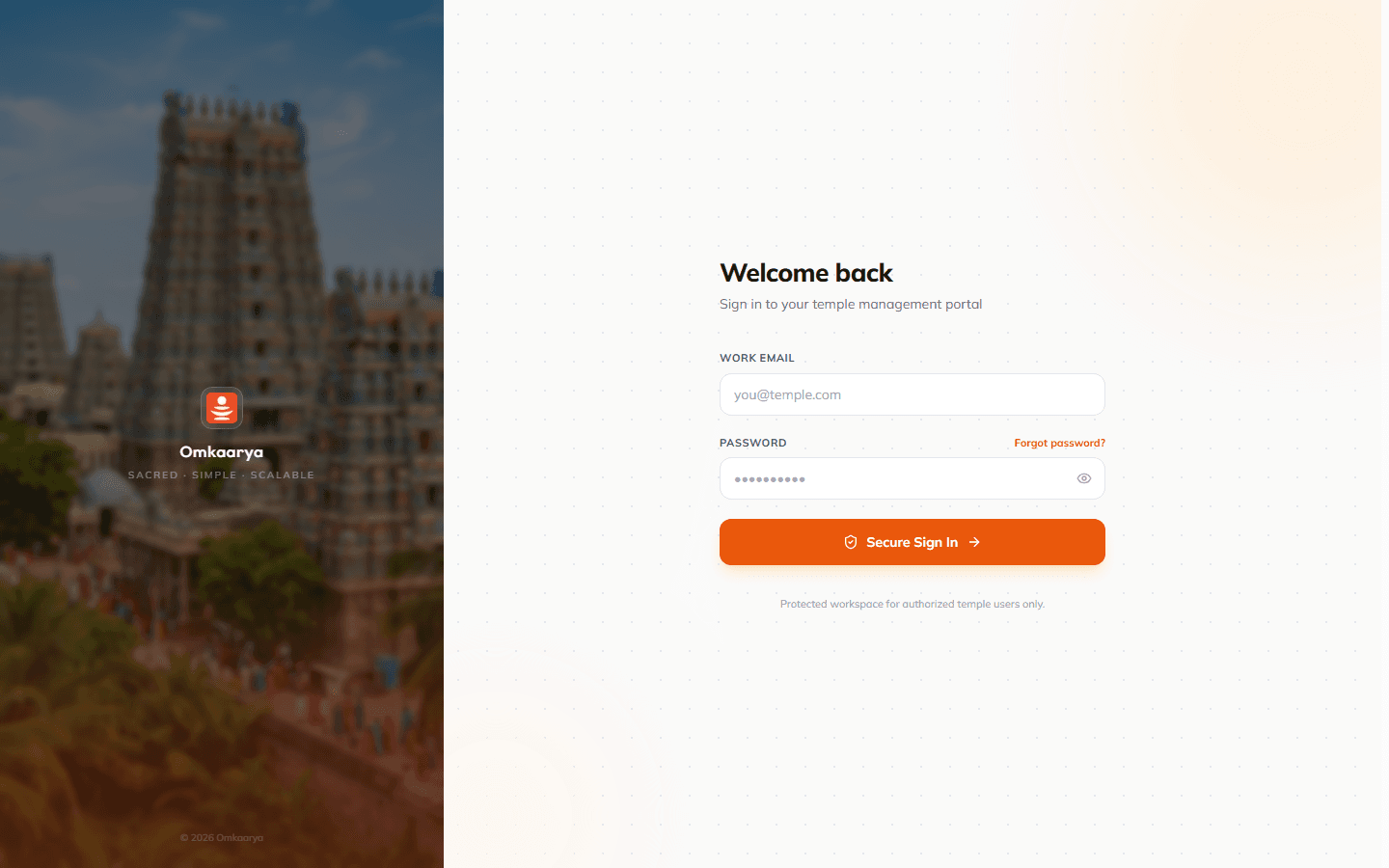
Use your temple-issued email and password to access the Omkaarya temple portal. Sign-in happens on your temple’s login page, not the marketing website.
Available on
Navigation path
/login
/login
1Open your temple login page
Navigate to the login URL provided by your temple or Omkaarya onboarding team. Bookmark this URL for daily use.
2Enter your credentials
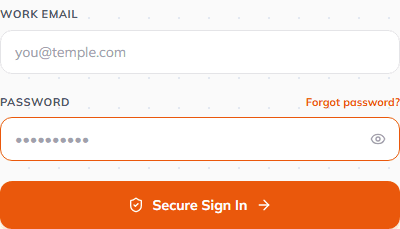
Type the email and password assigned to your user. Password fields are masked for security.
3Sign in
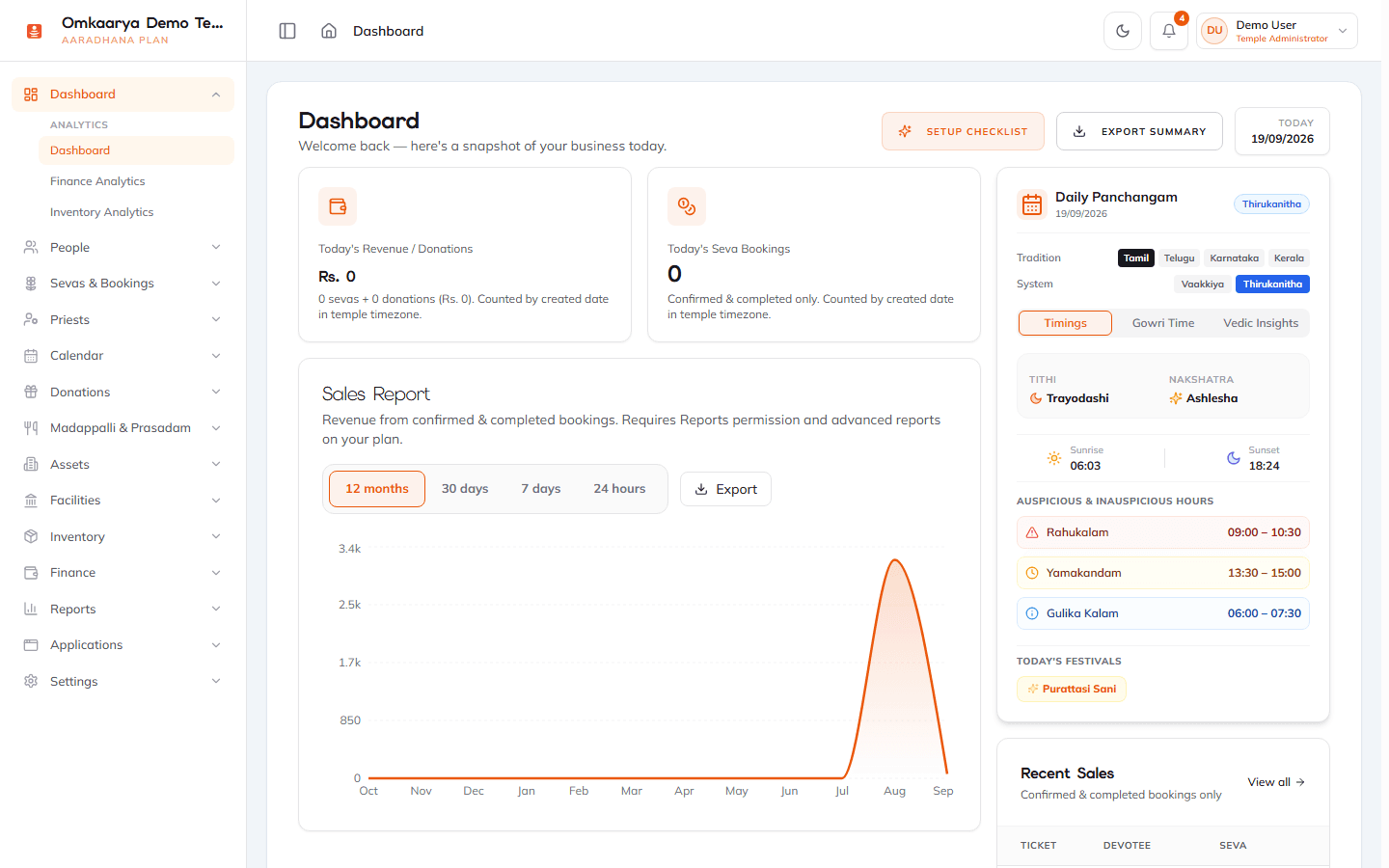
Select **Secure Sign In**, then confirm you land on the temple dashboard (`/dashboard`). If your temple uses idle timeout, you may need to sign in again after a period of inactivity.
4Forgot password
Use **Forgot password** on the login page if your administrator has registered an email for your account. Reset links are sent to that email.
What happens next?
- You are signed in and can open dashboard modules allowed for your role.
Troubleshooting
| Issue | What to try |
|---|---|
| Invalid email or password | Verify credentials with your Temple Administrator. Use forgot-password if email is on file. |
| Access denied after login | Your role may not include the module. See Troubleshooting — Access Denied (HC-TS-001). |
Related articles
Last updated: 2026-03-19 · HC-GS-002
Was this article helpful?
Still need help?
Try another search term, browse a related category, or reach Omkaarya support through the channels configured for your deployment.